NanoVer iMD-XR
You can use the NanoVer iMD-XR application to incorporate XR into your workflow, including:
visualising molecular systems in XR, including real-time MD simulations, recorded trajectories, and static structures
interacting with real-time molecular simulations using XR controllers
joining together with others for multi-person sessions in XR
To install the NanoVer iMD-XR application, go to Installation & Getting Started. For help choosing your XR setup, see Choosing your iMD-XR setup. For guidance on using the NanoVer iMD-XR application, see Navigating NanoVer in XR.
Navigating NanoVer in XR
Introduction
We call an instance of the NanoVer iMD-XR application an iMD-XR client, or simply an XR client. This is different to a python client, which connects to a NanoVer server from a python script or Jupyter notebook. This distinction is important since the two types of client offer different functionalities. For example, both can connect to a NanoVer server to access simulation data, run commands such as play/pause/reset, & apply forces to the molecule system (interactive MD). However, only an XR client allows you to visualise & interact with a simulation in XR, and only a python client allows you to change the visualisation of the molecular system.
Key point
An XR Client or iMD-XR client is an instance of the NanoVer iMD-XR application that has connected to a NanoVer server.
Your XR controllers
Below are diagrams showing the positions of the XR controller buttons that you will use in NanoVer iMD-XR, using the Meta Quest 2 controllers for demonstration. These buttons are in similar positions on most common XR controllers, but please refer to your XR headset’s documentation if you cannot locate them.
Important
To press a button on a menu in XR, place the end of your controller on the button and click the trigger.
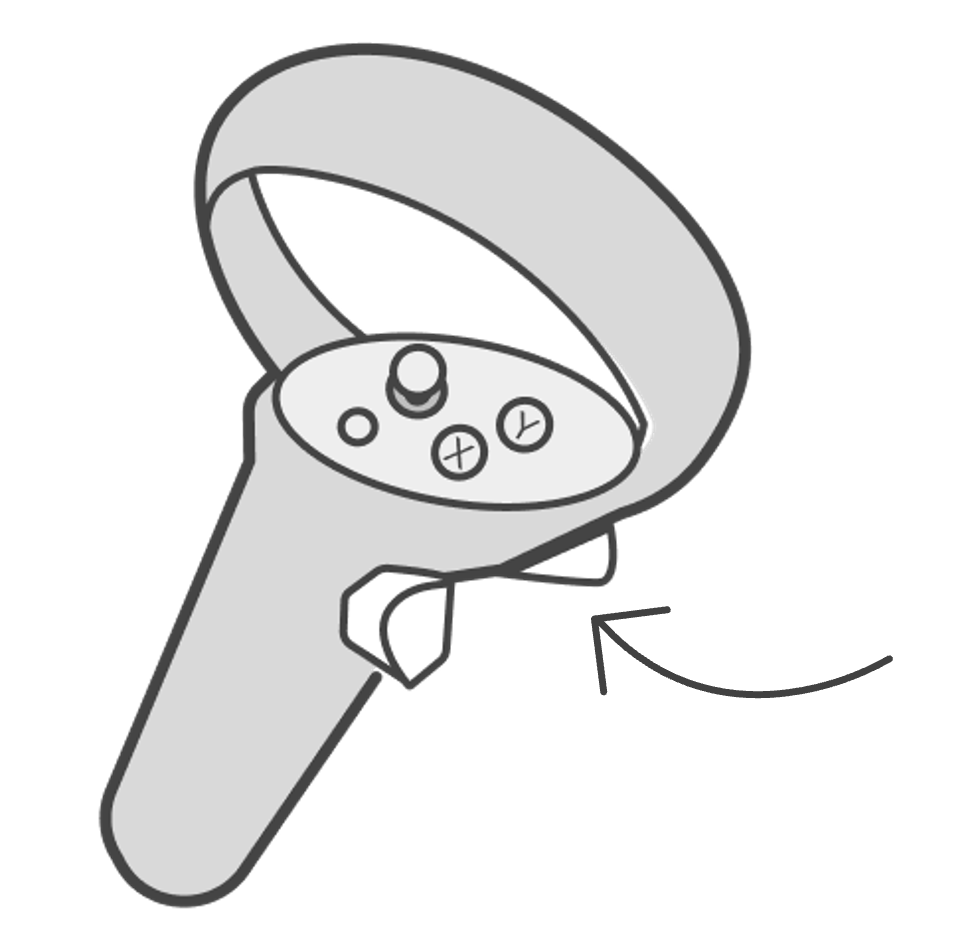
|
Trigger button |
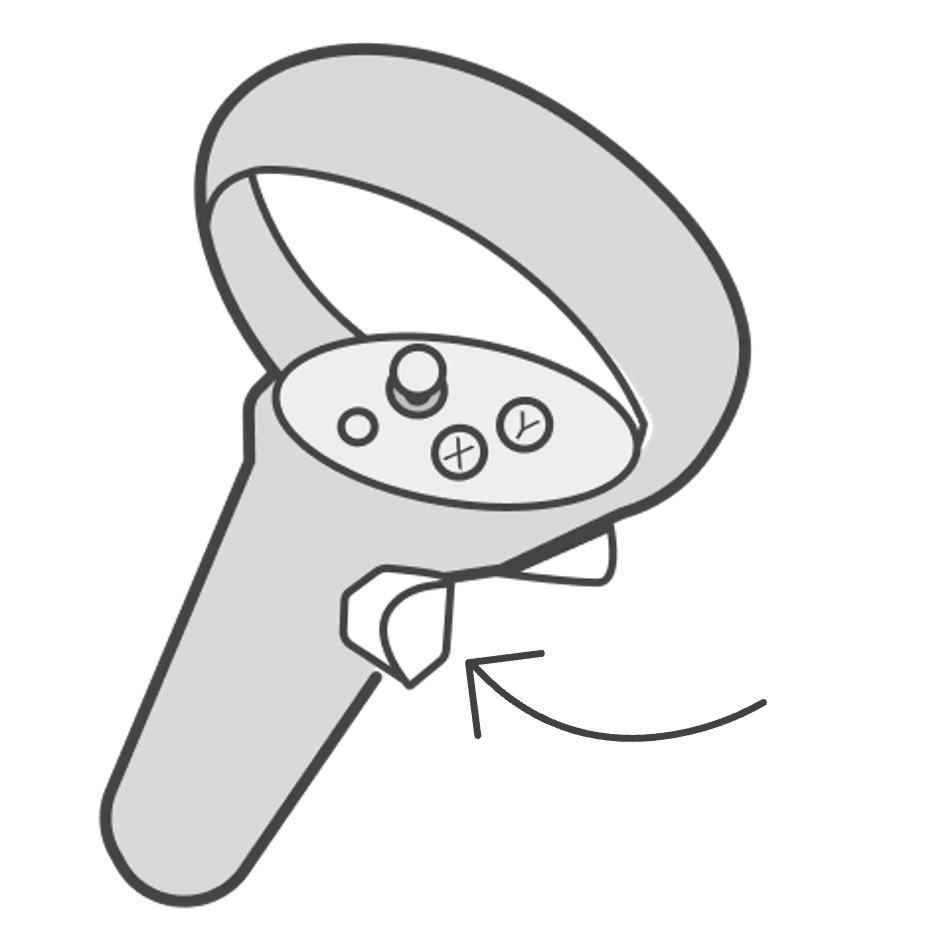
|
Grip button |
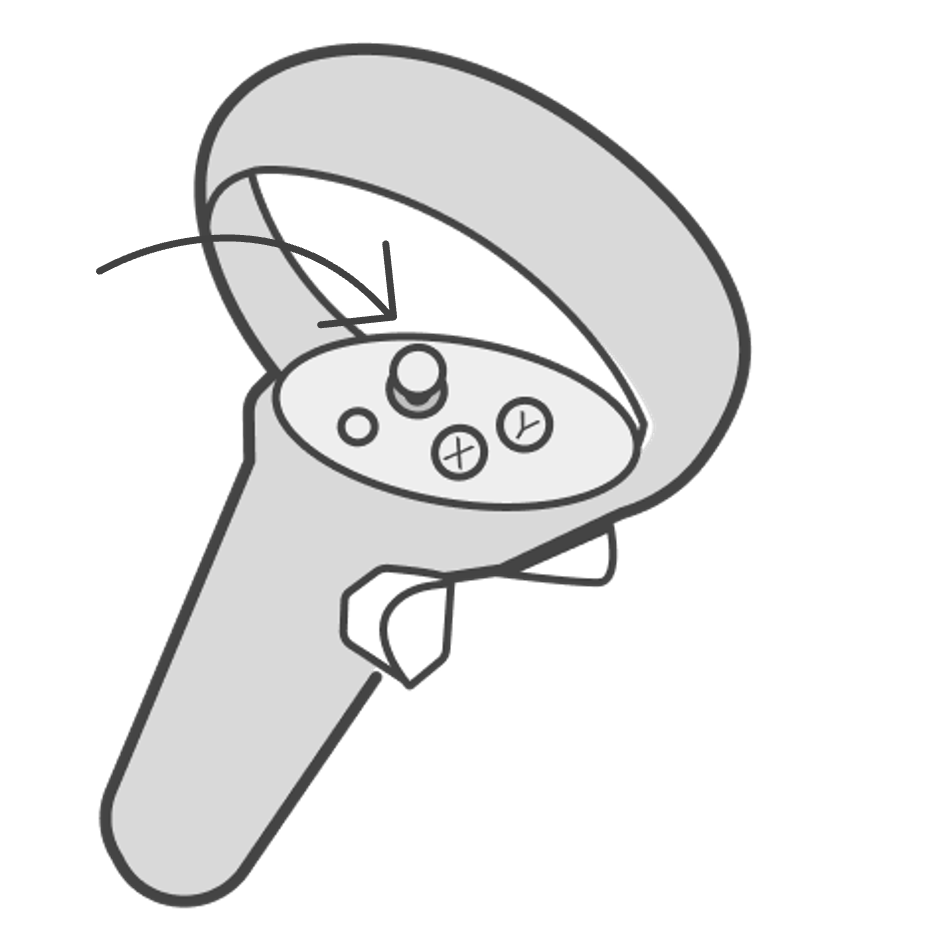
|
Joystick |
A typical iMD-XR workflow
You should now have NanoVer iMD-XR and your XR setup ready to go! To begin, follow these steps:
Start your NanoVer server (see Running a server)
Setup your XR kit & open NanoVer iMD-XR (see Installing the iMD-XR client)
Select your option for connecting to a Server: using either the in-XR main menu or desktop main menu (PC-XR only)
Check out your molecular simulation in XR! See instructions for the XR controls and menus, or check out the tutorials page for examples of how to integrate NanoVer iMD-XR into your workflow
Connecting to a NanoVer server
You have several options for connecting to a NanoVer server:
Autoconnect: connect to the first server (using the default port) found on the network
Discover: find all servers (using the default port) on the network and list them for the user to choose from
Manual: allow the user to specify the IP address and port of the server they wish to connect to and then, if found, connect to it
Note that when using a VPN you cannot use the “Autoconnect” or “Discover” features. Instead, you must use the “Manual” option.
In-XR main menu
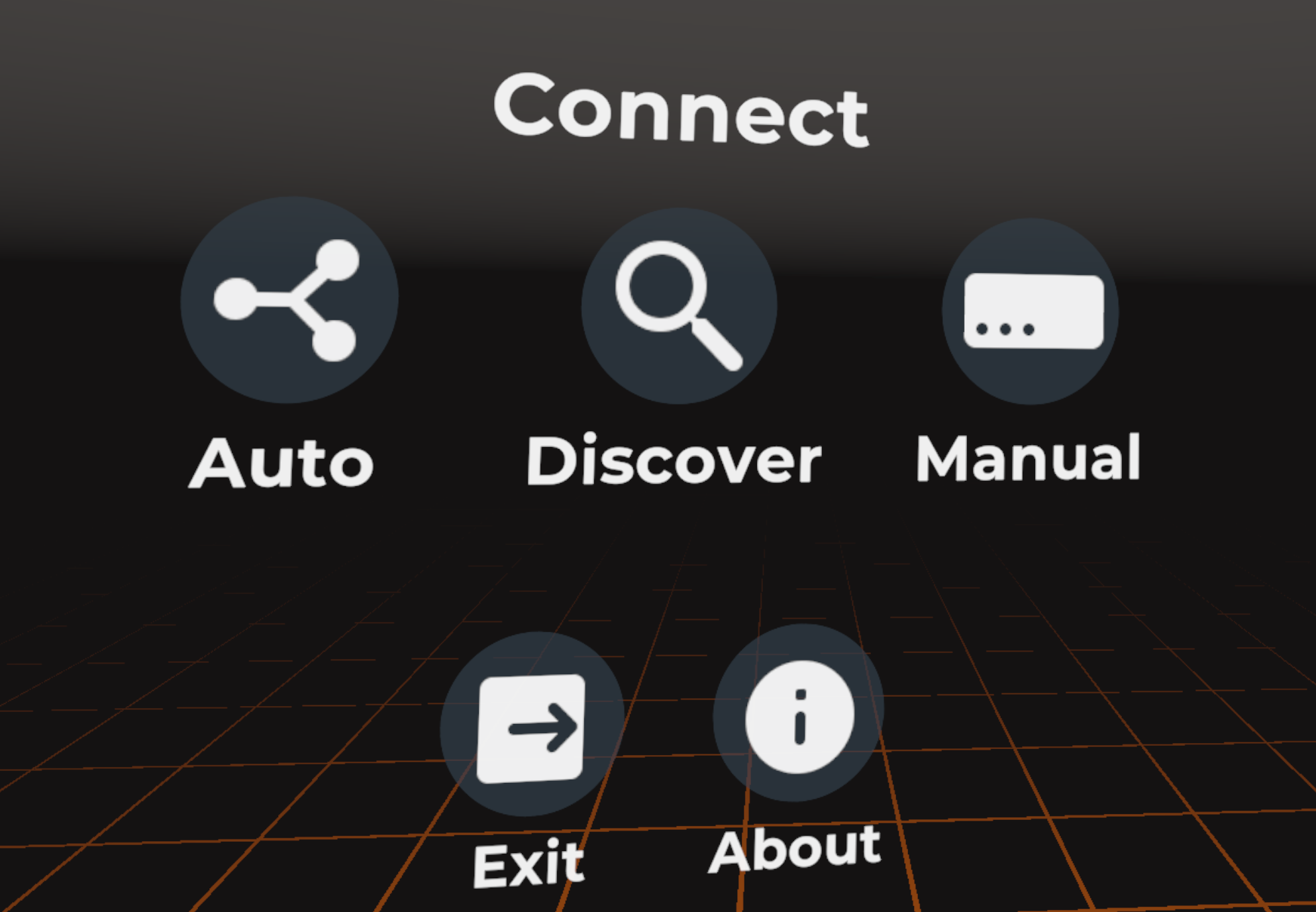
Important
To press a button on the in-XR main menu, place the end of your right controller on the button and click the trigger.
Select from the dropdown options below to see the video tutorials:
Autoconnect
Click |
Discover
Click |
Manual
Click |
Desktop main menu (PC-XR only)
When you open the NanoVer iMD-XR application on your PC, you will see a small menu on the top left of your monitor with the below headings. In Server, you can connect to your NanoVer server. Select from the dropdown options below for further information and to browse other features:
Server
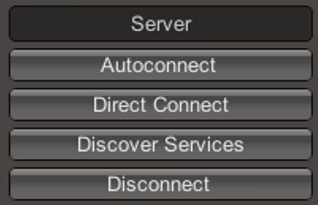
Autoconnect |
Connect to the first server found on the network, using the default parameters. |
Direct Connect |
Toggle a menu where you can change the IP address and trajectory/multiplayer ports of the server you wish to connect to. |
Discover Services |
Toggle a menu to search for servers running on the network. Click “Search” to show the available servers. |
Disconnect |
If connected to a server, disconnect. |
Note that when using a VPN you cannot use the “Autoconnect” or “Discover Services” features. Instead, you must use the “Direct Connect” option.
User
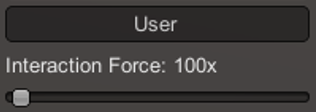
Interaction Force |
Scale the user’s interaction force. |
Simulation
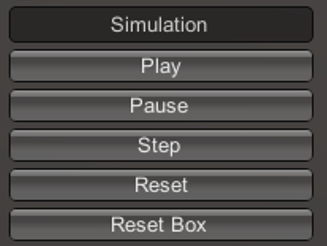
Play |
Play the simulation. |
Pause |
Pause the simulation. |
Step |
Move to the next frame of the simulation. |
Reset |
Reset the simulation to the starting positions. |
Reset Box |
Move and resize the box to the original dimensions and position in the XR space. |
Colocation
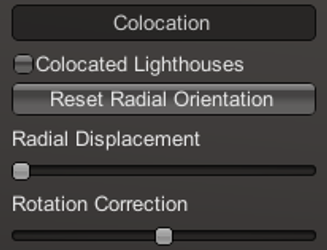
Colocated Lighthouses |
Toggle colocation. This is only compatible with players using HTC base stations. |
Reset Radial Orientation |
Orient players’ XR play spaces into a mandala. |
Radial Displacement |
Slide players’ XR play spaces inwards and outwards from the centre of the shared space. |
Rotation Correction |
Adjust the rotation of players’ XR play spaces to align with the shared space. |
Debug
Simulate Controllers |
Toggle the simulation of random interaction forces. |
Misc
Quit |
Quit the program. |
XR controls & menus
Once you have connected to a server, you can visualize & interact with your simulation. You now have access to your XR controls & several menus:
In-simulation controls
You can access the in-simulation controls anytime you are connected to a server and don’t have any menus open. Select from the dropdown options below to see the video tutorials:
Interact with the simulation
Press and hold the trigger button on either controller to apply a force to the nearest atom of the molecule. You can use both controllers at the same time. |
Move the simulation box
Press and hold the grip button on either controller to move the simulation box. |
Resize the simulation box
Press and hold both grip buttons to move & resize the simulation box. |
Change the magnitude of the interaction force
Push and hold the joystick on the right controller to the right to increase the force, or to the left to decrease it. Doing so will alter the scaling value of the interaction force (see video). Note that this changes the force for both controllers. |
Right handheld menu
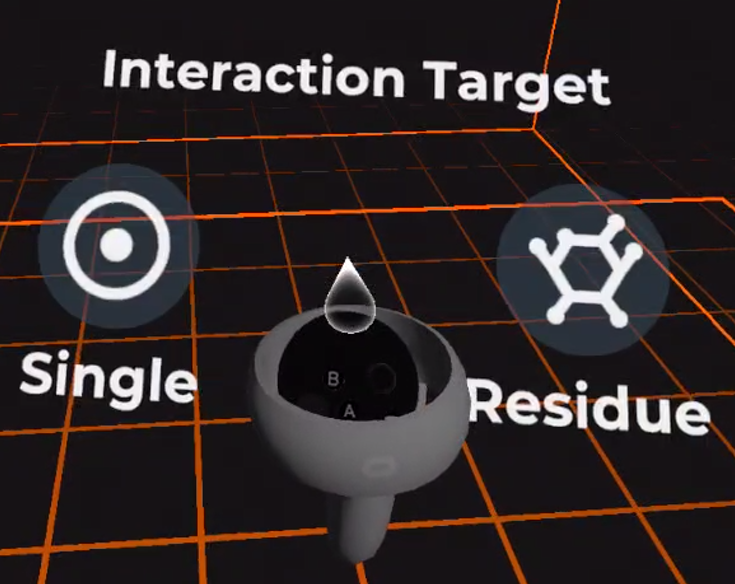
Here you can adjust aspects of your interaction with the molecules, such as:
Select your interaction type: toggle between interacting with individual atoms or entire residues
Important
Open the right handheld menu by holding the joystick of your right controller in the down position. With the joystick held down, move your controller to a button and press the trigger to click it. Release the joystick to close the menu.
Open the dropdown below to see the video tutorial:
Select your interaction type
Select your interaction type:
|
Left handheld menu
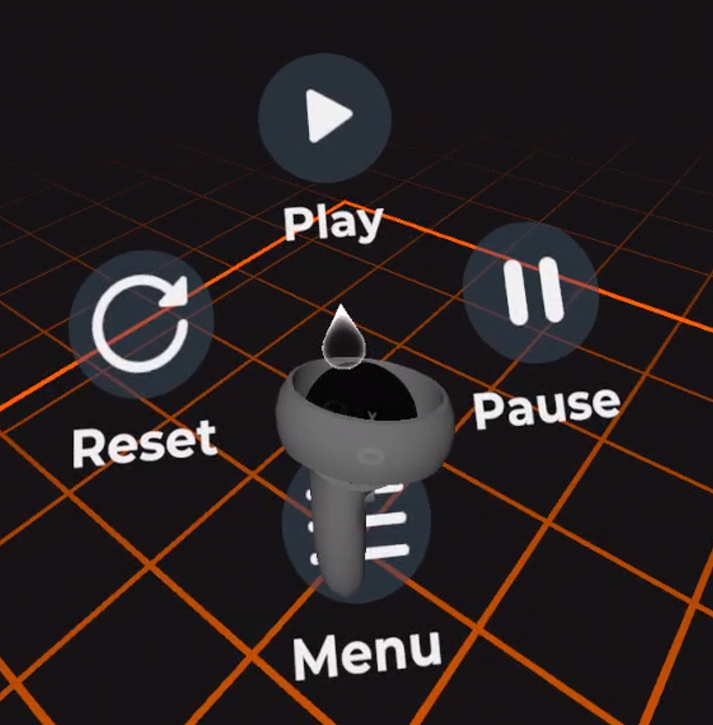
Here you can access the fullscreen menu and run simulation commands such as:
Pause: pause a running simulation
Play: play a paused simulation
Reset: reset the system to its initial coordinates
Important
Open the left handheld menu by holding the joystick of your left controller in the down position. With the joystick held down, move your controller to a button and press the trigger to click it. Release the joystick to close the menu.
Select from the dropdown options below to see the video tutorials:
Pause
Select the |
Play
Select the |
Reset
Select the |
Fullscreen menu
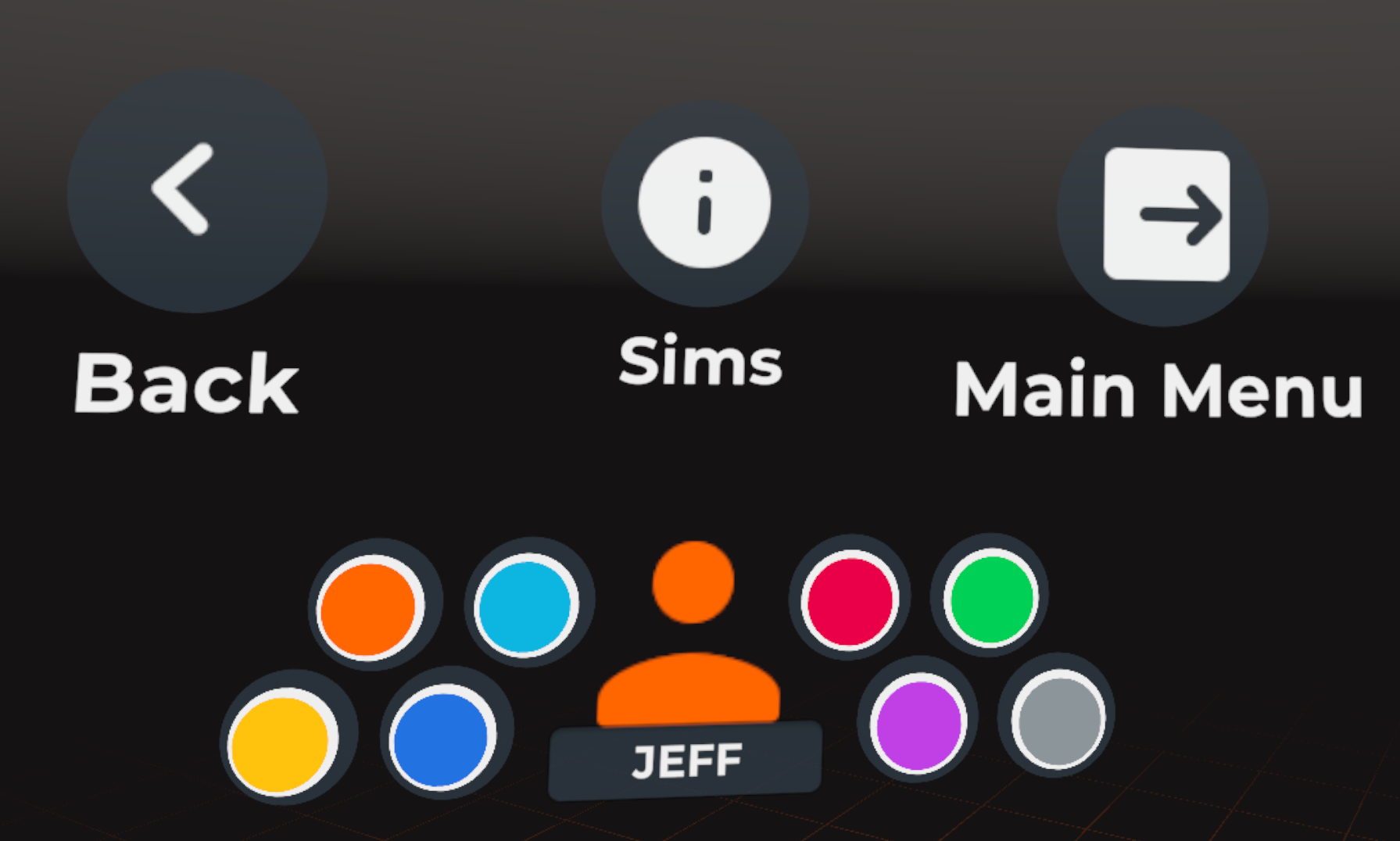
Click Menu on the left handheld menu to open the fullscreen menu.
Here you can:
switch between loaded simulations
customize your avatar name & color
Important
Once you have opened the fullscreen menu, release the joystick on your left controller
and use your right controller to interact with the buttons.
When you are finished, click Back to return to the simulation.
Select from the dropdown options below to see the video tutorials:
Switch between loaded simulations
Select |
Customize your avatar
Although not visible to you, these fields are stored in the shared state and determine how others will see your avatar during multiplayer sessions. |
Choosing your iMD-XR setup
If you wish to visualise and/or interact with your simulations in XR, you will need to use an iMD-XR client. We focus on NanoVer iMD-XR as the prototypical iMD-XR client, but these instructions can be generalised to any iMD-XR client, e.g. your own custom XR application that uses the NanoverUnityPlugin.
Please feel free to use the instructions below to help you choose your XR setup, then search online (or follow the links given below) for the documentation of your chosen method for the latest instructions on configuring your setup.
For help choosing your XR setup, see our flow diagram in Choosing your XR setup
Once you know your XR setup, head to Choosing your installation method
Once you’re ready, head to Installation & Getting Started
Note
XR is developing fast and there are constantly new features/apps/ways of doing things. Therefore, these instructions may not be an exhaustive list of all the possible XR setups. Please feel free to choose whichever one you are most comfortable with! We also recommend checking out the online documentation for your XR headset if you run into any problems relating to setting up your XR kit.
Choosing your XR setup
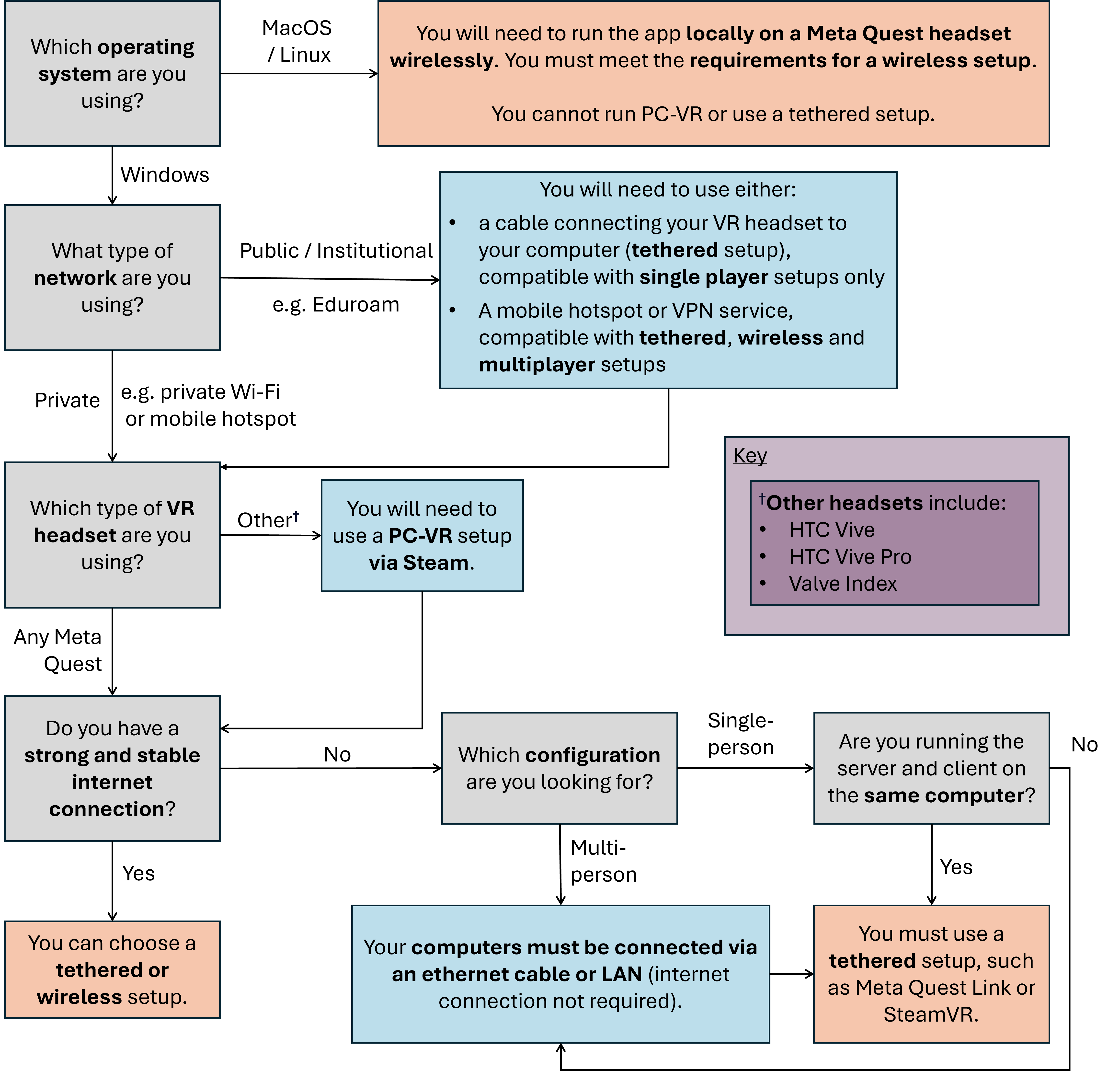
Below is a flow diagram to help you decide which setup to choose based on: the operating system of your computer, the type of network you have access to, your XR headset, and your desired configuration (single-/multi-person XR).
Key definition
Tethered: using a cable to connect your XR headset to your computer.
For a wireless setup you will need to have a strong and stable internet connection that allows communication over the network. Note that this option is often not possible with public & institutional networks such as Eduroam (see below for further details). In this case, you can use either a VPN service or mobile hotspot. You must ensure that all devices are connected to the same VPN or hotspot, including the computer running the NanoVer server and your XR headset(s).
Further information about institutional networks (e.g.Eduroam)
Eduroam segments devices into different subnets (e.g. 172.18.11.x vs. 172.18.15.x) and enforces security policies that block direct device-to-device communication. Key restrictions include:
Subnet isolation: Traffic between subnets is filtered at the network layer
Client-to-client blocking: Direct communication between devices on the same broadcast domain is prohibited
Multicast/broadcast limitations: Discovery protocols (e.g. UDP broadcasts) are often disabled
One way to bypass these restrictions is to use a virtual private network (VPN) service. One such service that we tested is Tailscale but there are many others available. Note that when using a VPN you cannot use the “Autoconnect” or “Discover Services” features. Instead, you must select “Direct Connect” (PC-XR menu) or “Manual” (in-XR menu) and type your IP address.
Choosing your installation method
Please choose from the dropdown options below to learn about how to install NanoVer iMD-XR with your chosen XR setup:
Using PC-XR (Windows only)
This option is compatible with the following XR setups:
Meta Quest Link (tethered)
Meta Quest AirLink (wireless)
SteamVR (tethered)
Steam Link (wireless)
You can use either NanoVer iMD-XR installation method:
Downloading the latest release of the NanoVer iMD-XR executable, see Download the latest release.
Conda installation of the NanoVer iMD-XR package, see conda_installation_XR_client.
Running locally on a Meta Quest headset
This option is compatible with the following XR setups:
Run directly on the App store of a Meta Quest headset (wireless)
Meta Quest Link with Meta Quest Developer Hub (tethered)
You must use the following NanoVer iMD-XR installation method:
Download the latest release of the NanoVer iMD-XR apk and sideload this onto your headset, see Download the latest release. If you wish to use your XR headset wirelessly, then you must meet the requirements for a wireless setup (see above).
Choosing this option means that you cannot run NanoVer iMD-XR via conda.
Warning
Some renderers do not render correctly when using the standalone apk build, including spline,
geometric spline, and cartoon.
We are currently working to resolve this, please see the
issue on our git repo for updates.